
1½ min
How do I put my rooms on BukNau?
Make an account, add your bank details and your first room. It takes one sitting.
Create your account
Step 1 of 11.
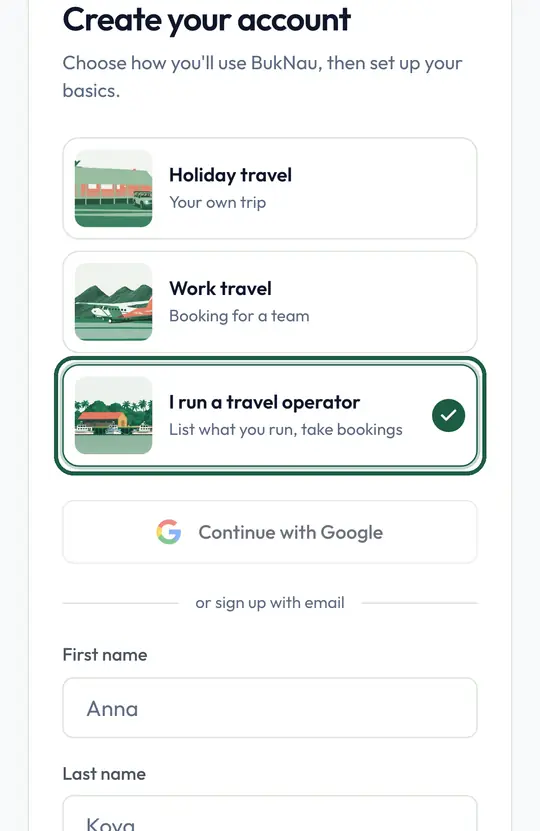
Choose “I run a travel operator”
This sets up the tools for selling and taking bookings.
Step 2 of 11.
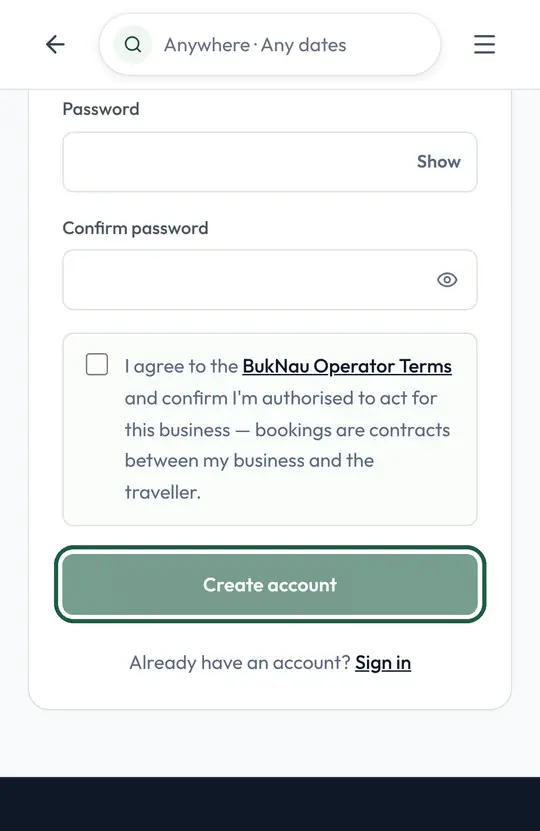
Fill in your details and tap “Create account”
Booking emails go to this address, so use one you check every day.
Add your bank details
Step 3 of 11.
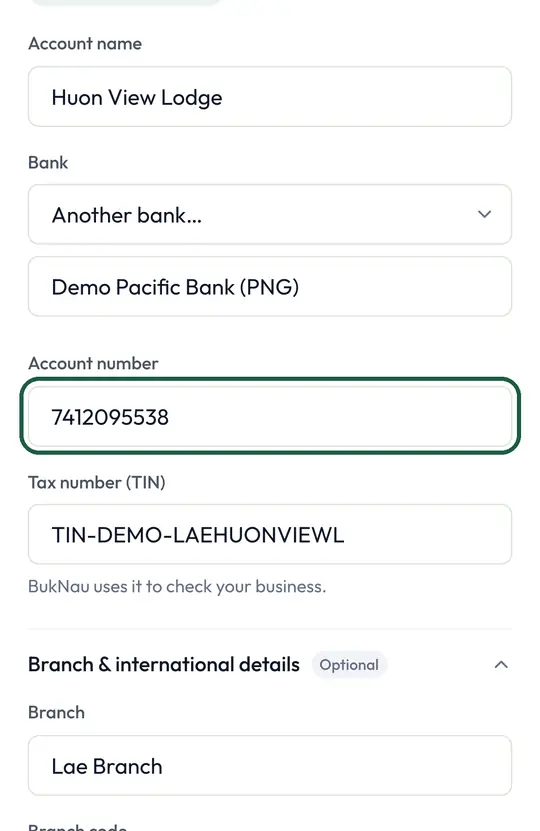
Tap “More” at the bottom, then “Settings”, then “Getting paid”. Type in your bank account.
Travellers pay you directly. Until your bank details and tax number are saved, nobody can book you.
Add your first room
Step 4 of 11.
Tap “Listings” at the bottom, then “Add”
Everything you sell lives in Listings.
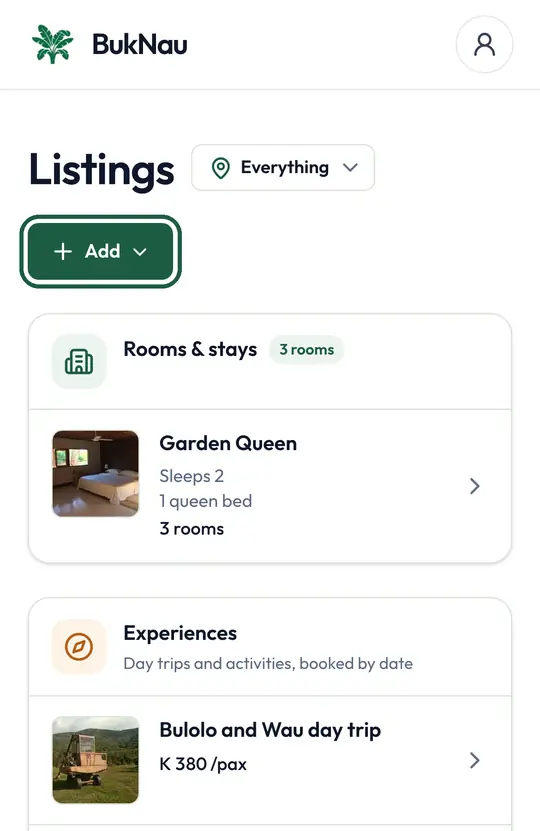
Step 5 of 11.
Choose “Room type”
One room type covers all your rooms that are the same, so you set the price once.
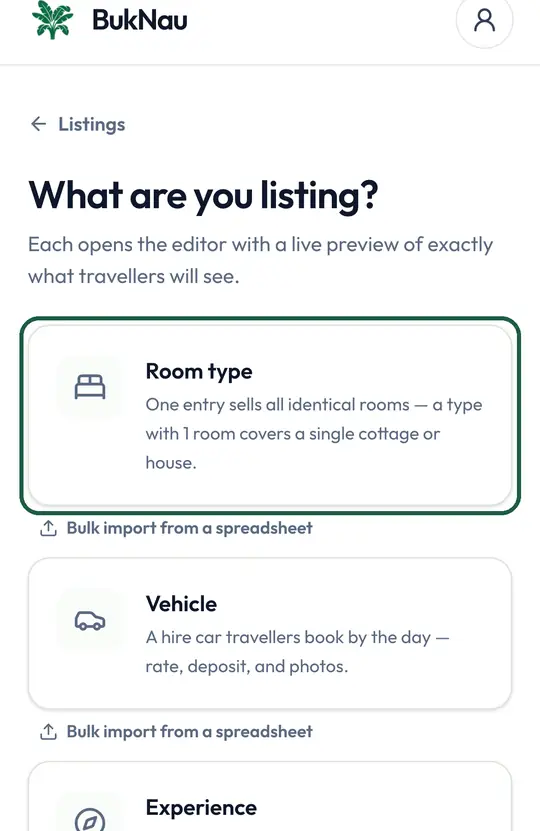
Step 6 of 11.
Add photos of the real room
Clear, bright photos are what make people book.
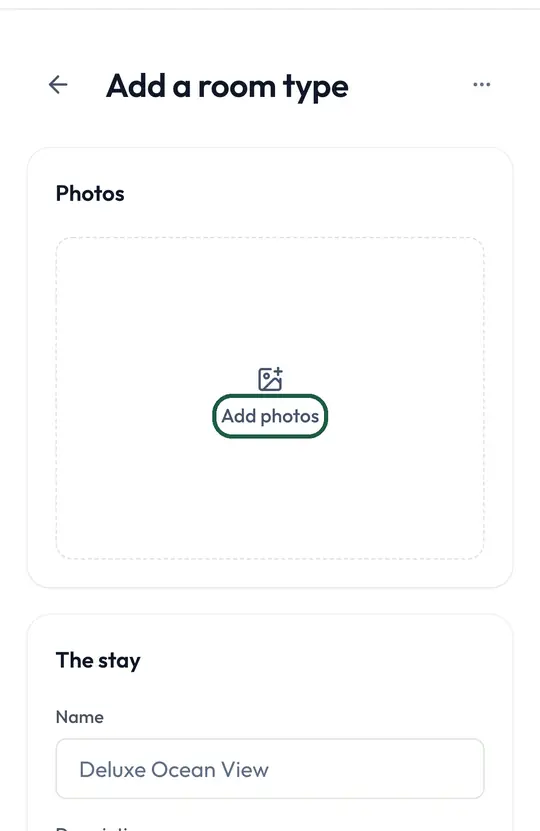
Step 7 of 11.
Give it a name
Travellers see this name when they choose a room, and on their booking.
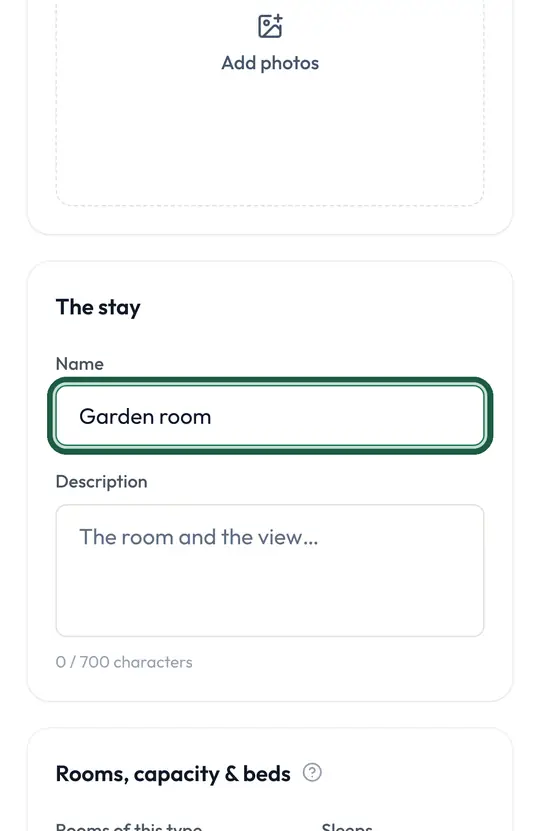
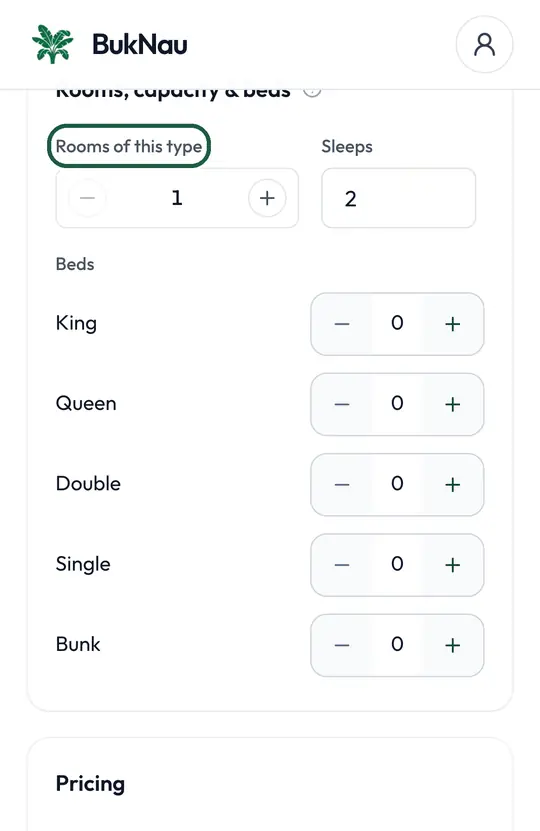
Step 8 of 11.
Say how many rooms of this type you have, and the beds
BukNau stops selling this room type when every one of them is booked.
Step 9 of 11.
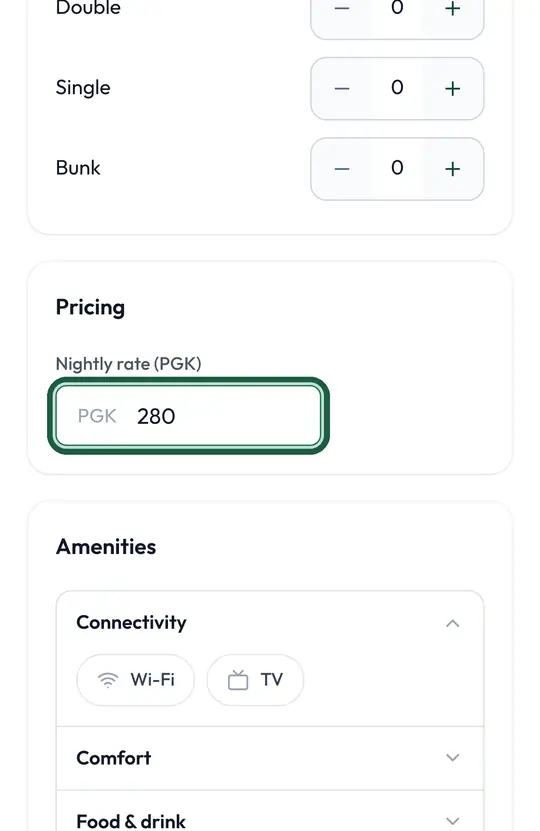
Set the price per night
This is the price travellers see and pay when they book.
Step 10 of 11.
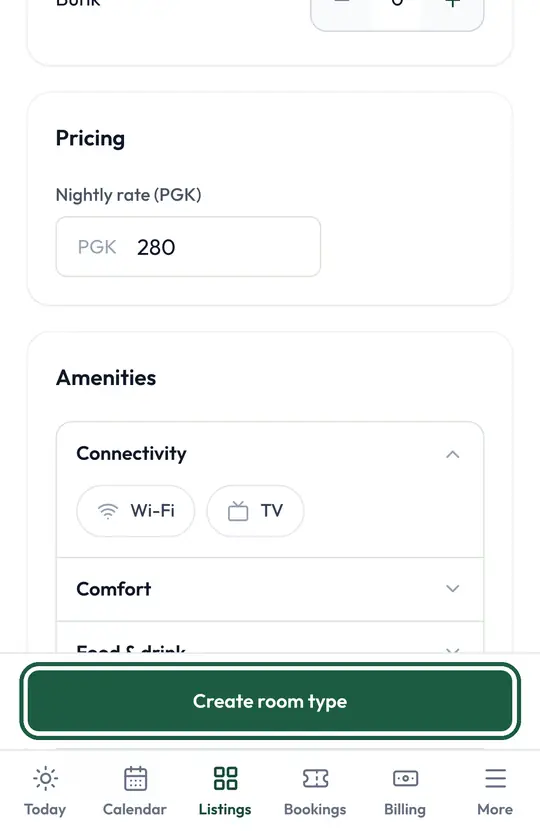
Tap “Create room type”
Your room goes live and can be booked straight away.
Step 11 of 11.
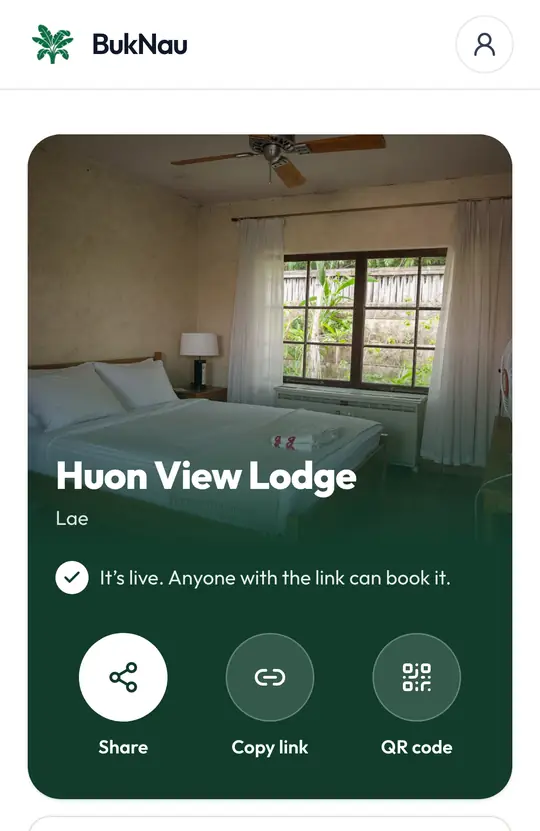
It's live
Send the link to anyone who calls or messages you, and they can book it themselves.
Good to know
- Free to list.
- Tours, cars, transfers, charters and packages are added the same way, from Listings.
- Pick your town from the list. Travellers search by town, so a typed one can't be found.

Talk to a person
 Talk to a person
We read every message. Ask about a booking, tell us something isn’t working, or share an idea. We reply by email, phone or WhatsApp, usually within a working day.
Or email support@buknau.com